

 Stellar Data Recovery – A Leading Data Recovery Software (Watch Full Review:
 10% Discount Coupon (Limited): 4A9E9B4451
► Data Recovery Windows Standard:
► Data Recovery Windows Professional:
► Data Recovery Windows Technician:
► Photo Recovery Windows Standard:
► Data Recovery Mac Professional:
֎ Top VPN Services
- CyberGhost VPN
- NordVPN
- Express VPN
֎ MY Top Cool Tech Deals
- Smart Wireless Charging Mouse Pad
- i10 TWS Bluetooth 5.0 Wireless Earbuds
- Wireless Charger
- Android Alfawise A5X TV Box
- Flash Sales
֎ Subscribe to EasyTechs:
֎ Follow us on Twitter:
֎ Follow us on Facebook:
֎ Support us on Patreon:
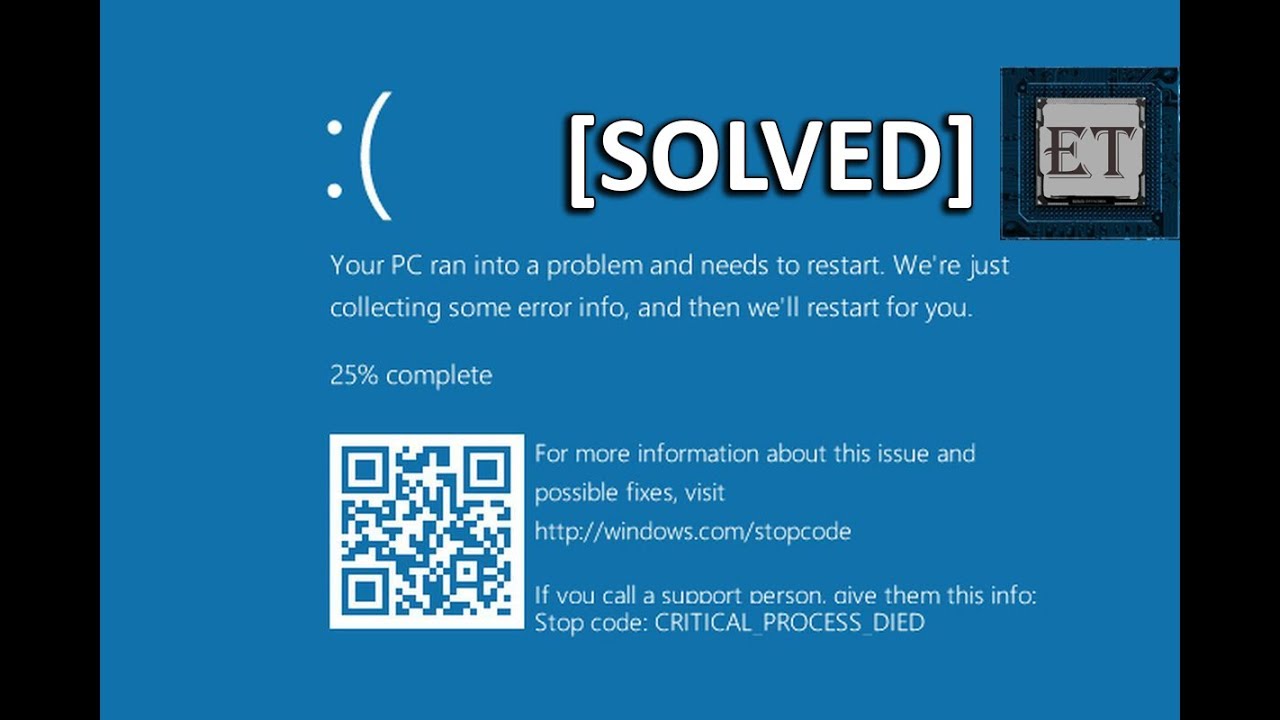
In this tutorial, I will be demonstrating three possible ways to fix the Windows 10 Startup error that says “Your PC ran into a problem and needs to restart. We’re just collecting some error info, and then we’ll restart for you”. Usually this error comes with a stop code 0xc000021a or an error code that says INACCESSIBLE_BOOT_DEVICE or CRITICAL PROCESS DIED. You could see this error pop up during system start-up but it could also happen during normal use. There are several possible reasons for this problem, ranging from software issues like registry changes or incompatible drivers, to hardware issues like loose hard disk connector or some other issues with a hardware component you have attached to your PC. In any case following the suggestions in this video should help you resolve this error and get your PC working fine again.
1. If you start experiencing this error after your laptop has gone through some major vibrations, either in transit or during other physical activities, or some minor fall, then chances are your hard disk connector might have gotten loose, so you might want to check that first before going through the other suggestions in this video, especially if your error comes with the code that says INACCESSIBLE_BOOT_DEVICE.
2. If your error comes with the stop code 0xc000021a then you should use the windows start-up repair tool to try to fix this problem automatically. For that you will need a bootable USB with windows 10 installation files, if you haven’t made one already, you can follow the procedures I showed in this video: to do that.
3. The third approach would be to use the registry backup command called regback. Regback replaces your registry configuration with the configuration of your most recent successful boot up. Here are the commands you need:
a. cd \windows\system32\config
b. MD backup
c. copy *.* backup
d. CD regback
e. copy *.* ..
f. exit
LINKS
Subscribe to EasyTechs:
If you would like to support us at EasyTechs, please feel free to donate to our patreon page on this link: Your donations are very much appreciated and would go a long way in growing the channel.
How to Create Bootable USB with Windows 10 Installation Files:
Equipment I Use For Making Videos
Canon EOS 70D :
Rode VMGO Video Mic GO Lightweight On-Camera Microphone Super-Cardioid:
Canon EF-S 24mm f/2.8 STM Lens:
Canon EF 50mm f/1.8 STM Lens:
SLIK U-8000 Photo/Video Mid-Size Tripod:
![EPIC SEVEN Secret Shop Refresh (950 Skystones) for Covenant Bookmarks & Gear! Epic 7 [Guide & Tips]](https://lh3.googleusercontent.com/blogger_img_proxy/AEn0k_vXMteAijPcpfMxeZLX1M-z_ZWOmmqD9Ml_vFE4OqWMrdtmNZTXvIRpWYTxUOmh9lUE6ajS_OTJTTs2-o8KPkYEQ_FC_Ttelq55e1xIl8m_td0gIg=w680)


1 Comments
System Mechanic Professional – 1 year service-$24.76-65%OFF
ReplyDelete